Users
How TrialStack manages organization members, roles, invitations, and the people who can access the workspace.
Control who can work here
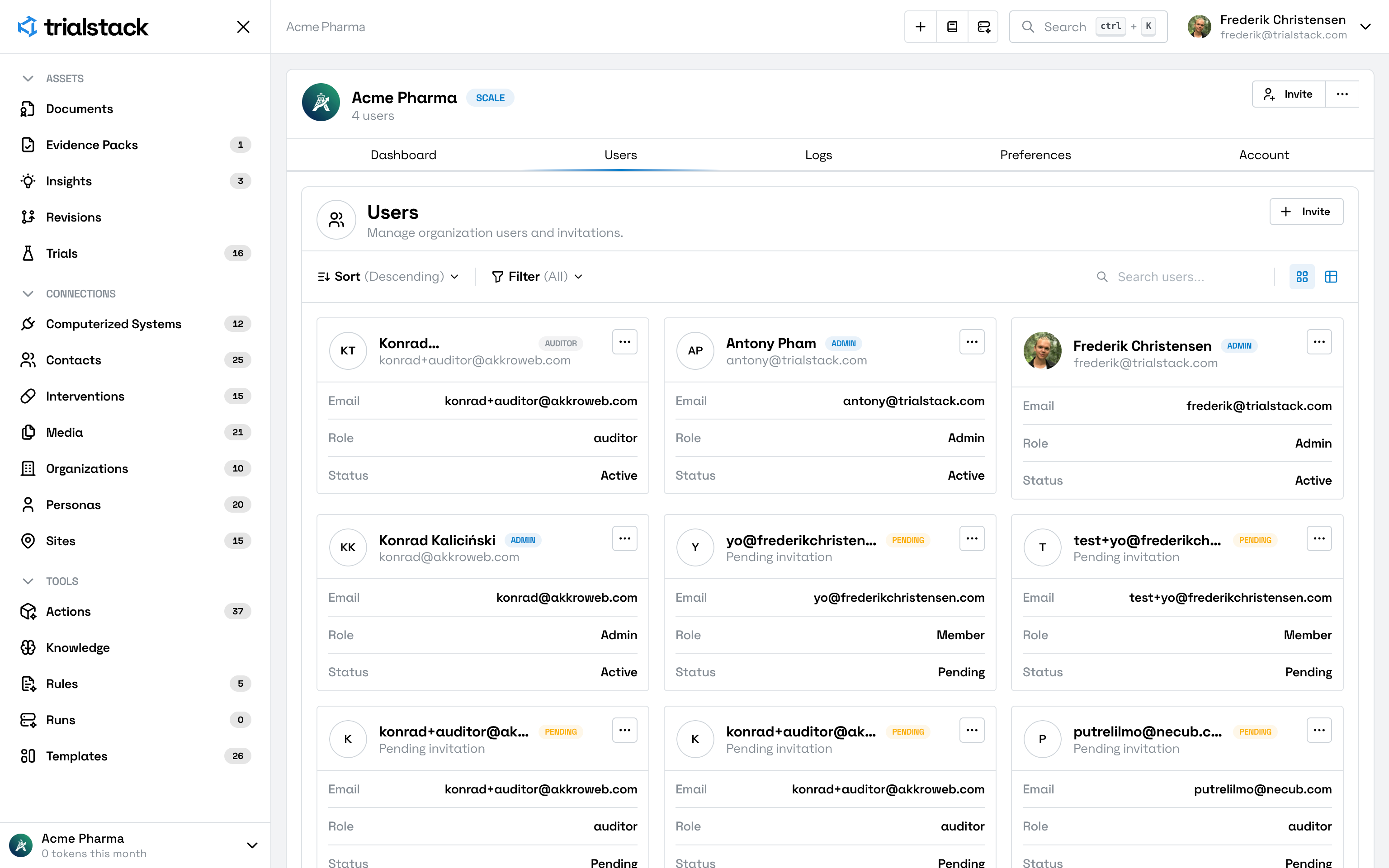
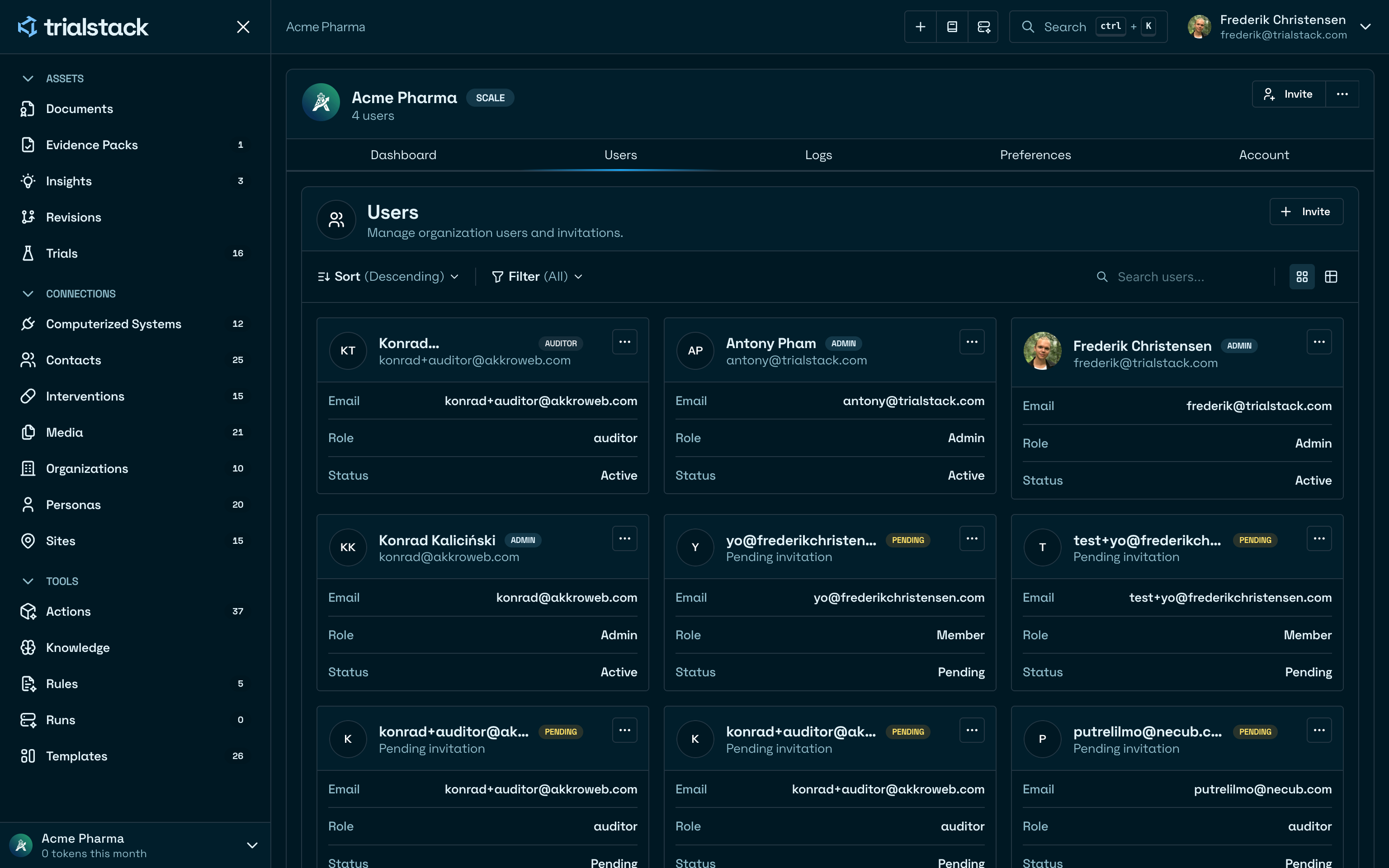
Users covers the organization membership surface in TrialStack. This is where teams manage who has access to the workspace and what role each person holds.
Keep ownership explicit
The user surface exists to manage:
- active members
- invitations and onboarding access
- workspace-level role ownership
- organization role profiles used during invites and member role edits
Keep roles governed
The Roles tab lets administrators maintain reusable role profiles for the organization. A role profile includes the user-facing role name, description, base platform role, avatar identity, and feature assignment matrix used to explain what the role is expected to cover.
Invite from the Users page
Administrators use the first-class Invite action on the Users page. If the organization has an available seat, TrialStack sends the invitation immediately. Active members and pending invitations both use seat capacity.
If every purchased seat is occupied, the invite flow asks a billing manager to buy one additional seat through Clerk Billing before the invitation is sent. Canceling or failing checkout leaves membership unchanged. To reduce billed seats at renewal, remove members and revoke pending invitations; purchased capacity remains reusable until the current billing period ends.
Role profiles are governed workspace content: changes are versioned, audited, and reviewable. The assignment matrix is maintained as role-profile content and does not by itself replace server-side permission checks or route authorization.
Use it when access changes
Open Users when:
- a new teammate needs access
- an existing member needs a role change
- administrators need to review whether workspace ownership is still clear
- administrators need to update the reusable role profiles offered during invite or edit-member flows
Avoid informal access drift
Access decisions shape the rest of the product. Teams should avoid treating membership as background admin work when it directly affects governed workflows and AI-enabled surfaces.